1. Generate an SSH key on your Zo
Open the Terminal in your Zo application. Run the command below, replacing the email used in the example with your own email address.ssh-ed25519 YOUR_ECDSA_PUBLIC_KEY your_email@example.com
2. Register your public key on your computer
Open your computer’s Terminal application. Run the command below to edit your authorized keys file:Ctrl + X, then Y, and finally Enter.
3. Enable SSH access to your computer
On macOS, you can enable SSH access by enabling Remote Login in your System Settings.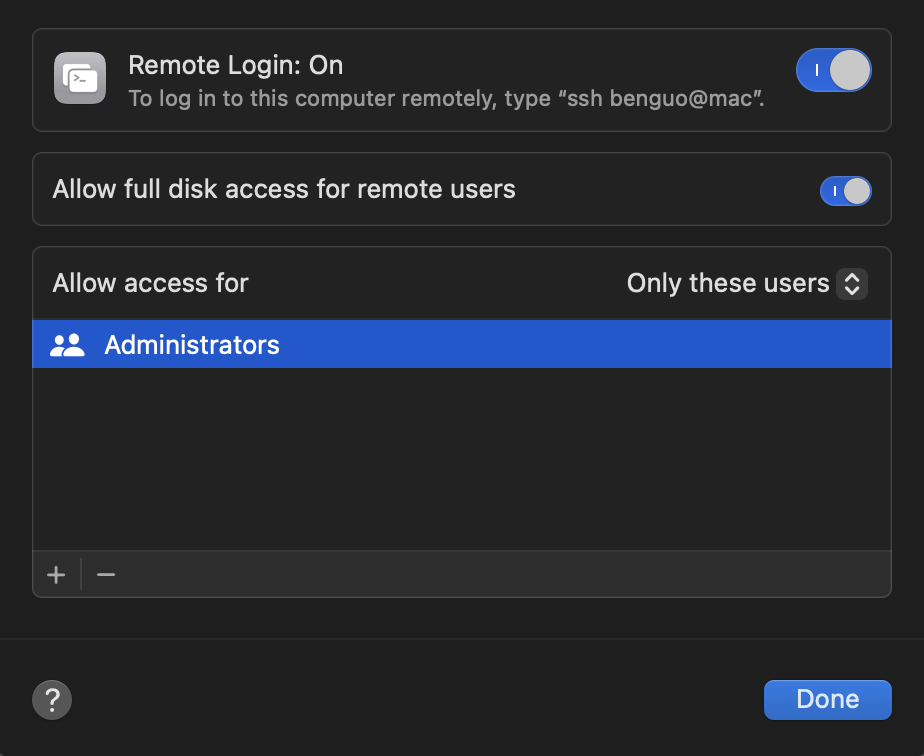
4. Set up and run ngrok
To create a tunnel to your computer, you’ll need to sign up for ngrok. To install ngrok on macOS, you’ll first need to install Homebrew by running their install command in your terminal. Then, you can install ngrok by running the following command:4. Connect to your computer
Open the Terminal in your Zo application. Run the command below, replacing the host and port with the values from your TCP address, and the user with your computer’s username. (You can runwhoami in your computer’s terminal to find your username.)
exit or Ctrl + D.
Create a shortcut to connect
In your Zo application’s terminal, run the command below to edit your SSH configuration file:Ctrl + X, then Y, and finally Enter.
Now, you can run ssh laptop to connect to your computer from your Zo’s terminal.
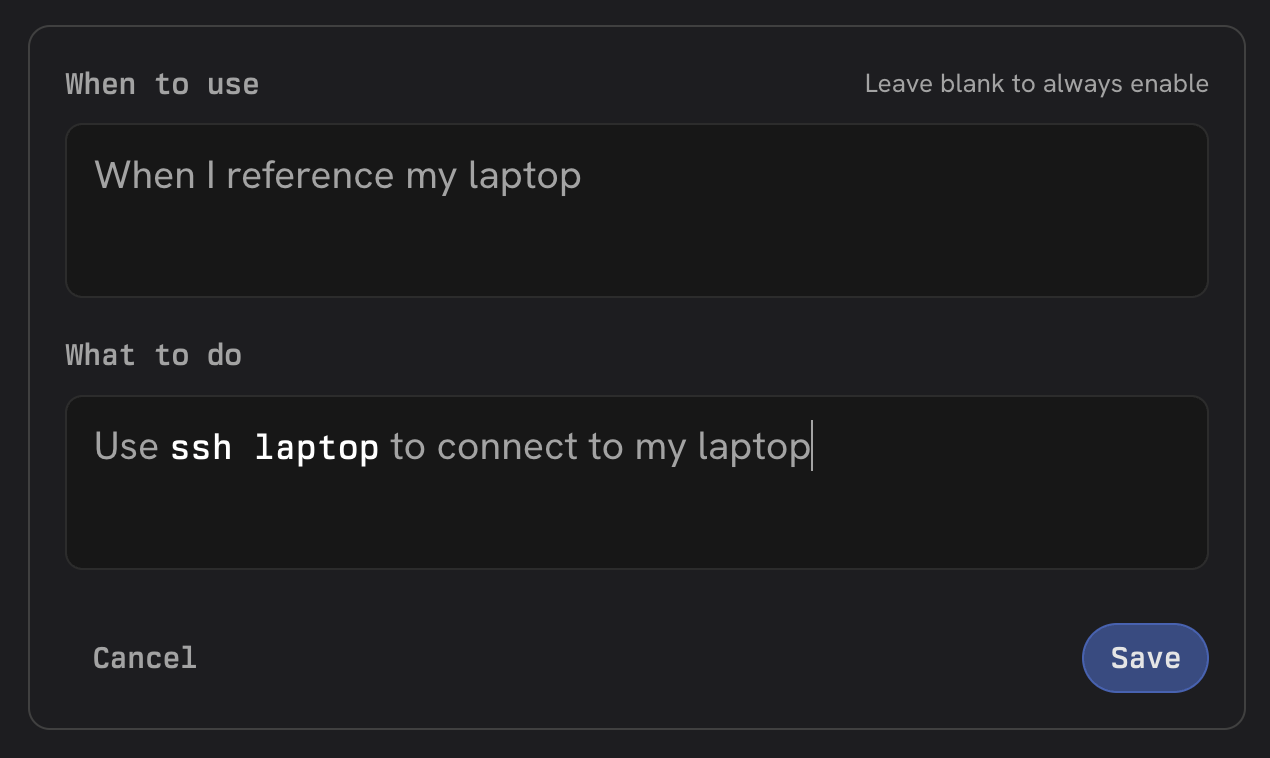
To tell Zo how to connect to your computer, you can create a rule instructing Zo to use ssh laptop to connect to your computer.